
UTM Tags &ndash Intro
When you publish a link on Instagram, TikTok, or create Meta or Google Ads, you need to make sure that those links have the following three URL parameters set.
These tell Google Analytics (or other analytics tools) where a click, visit, or conversion came from.
Side note: I didn't know this until recently, but UTM stands for Urchin Tracking Module. Who knew!
The three main URL parameters you should set on all published links

- utm_source &ndash Tracks where the traffic is coming from
Common values:instagram,facebook,tiktok,youtube,linkedin,newsletter,google,meta,twitter(orx),reddit,sms - utm_medium &ndash Tracks the type of marketing channel
Common values:social(organic social posts),paid-social(Meta, TikTok, LinkedIn paid ads),cpc(Google Ads / SEM),email,sms,display,referral,organic,banner,qr - utm_campaign &ndash Tracks the specific campaign name
Example values:summer_campaign,donation_drive
To learn more, this is a good comprehensive guide to UTM parameters in Google Analytics 4.
Use Google's UTM Campaign URL Builder Tool

You can use Google's Campaign URL Builder to help create URLs with UTM parameters faster.
Also see Google's collect campaign data with custom URLs documentation.
Standardize Your UTM Tags
This is important. If you don't stick to the same spelling and capitalization, you'll end up with multiple entries for what should be one source, medium, or campaign.
Guidelines:
- Use lowercase, no spaces, and underscores (
snake_case). Be consistent across teams. - Always set: utm_source, utm_medium, utm_campaign. Optionally add utm_content for creative/placement.
- Only tag links you control that lead to your own site. (Do NOT tag internal links or links leading to other sites.)
- Use Google's Campaign URL Builder to avoid typos.
Where to See the Data in Google Analytics 4?
On your GA4 account, go to:
Reports → Acquisition → Traffic acquisition
There you can break down by session/source, session/medium, campaign, manual ad content (utm_content), etc.
This is a good tutorial on how to find your Campaign data in Google Analytics 4.
UTM Tag Usage Examples
1) Organic Social: Instagram, TikTok, Facebook (Non-Paid Posts, Bios, Stories)
Use UTMs on every link you publish.
Template
utm_source=instagram | tiktok | facebook
utm_medium=social
utm_campaign=your_campaign_name
utm_content=story | reel | bio_link
Example (Instagram Reel for the "kariba_relocation" campaign)
?utm_source=instagram&utm_medium=social&utm_campaign=kariba_relocation&utm_content=reel
2) Newsletter (Mailchimp)
The easiest method is to turn on Google Analytics link tracking in the campaign's Settings & Tracking. Mailchimp will automatically append UTMs.
More info: Integrate Google Analytics with Mailchimp
3) Paid: Google Ads
Turn ON Auto-tagging. This adds the UTM parameters automatically, attributing paid clicks to utm_source=google, utm_medium=cpc.
Google Ads + GA4 will handle the detailed attribution without needing manual UTMs.
More info: [GA4] Benefits of Google Ads auto-tagging
4) Paid: Meta Ads (Facebook & Instagram Ads)
Add UTMs at the ad level. Prefer dynamic parameters so campaign/ad names auto-populate.
Meta's reference: Specifications for URL dynamic parameters on Meta Business Help Centre
Tutorial with screenshots: How to Use UTM Codes to Track Facebook Ads Effectively
Suggested dynamic template (URL Parameters):
utm_source={{site_source_name}}
&utm_medium=paid-social
&utm_campaign={{campaign.name}}
&utm_term={{adset.name}}
&utm_content={{ad.name}}
&utm_id={{campaign.id}}
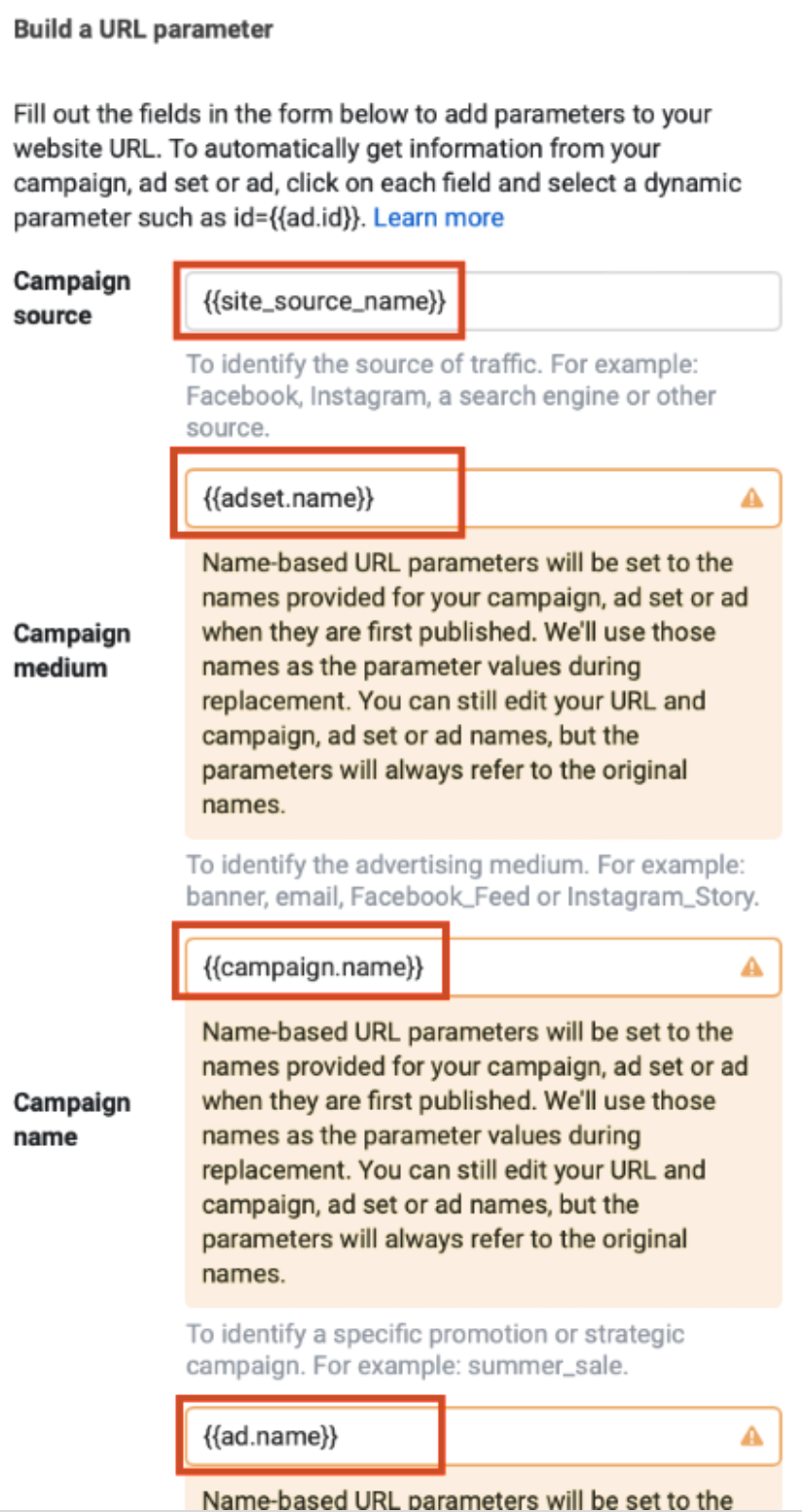
Configuring UTM parameters with the Custom Built "Beacon Multi-Currency Forms" WordPress Plugin
To make embedding multi-currency forms and passing UTM tracking parameters to Beacon easier, I created a WordPress plugin called Beacon Multi-Currency Forms.
To configure Beacon + WordPress + UTM tag forwarding:
- Download and install the plugin, instructions under each release.
- From your WordPress settings, navigate to
Settings -> Beacon Multi-Currency Formsand check the boxes forBeacon JavaScriptandUTM Parameter Tracking.
This configures the plugin to remember where a user came from (the 3 UTM parameters listed above) for 180 days and automatically sets thebcn_*URL parameters on Beacon forms submitted.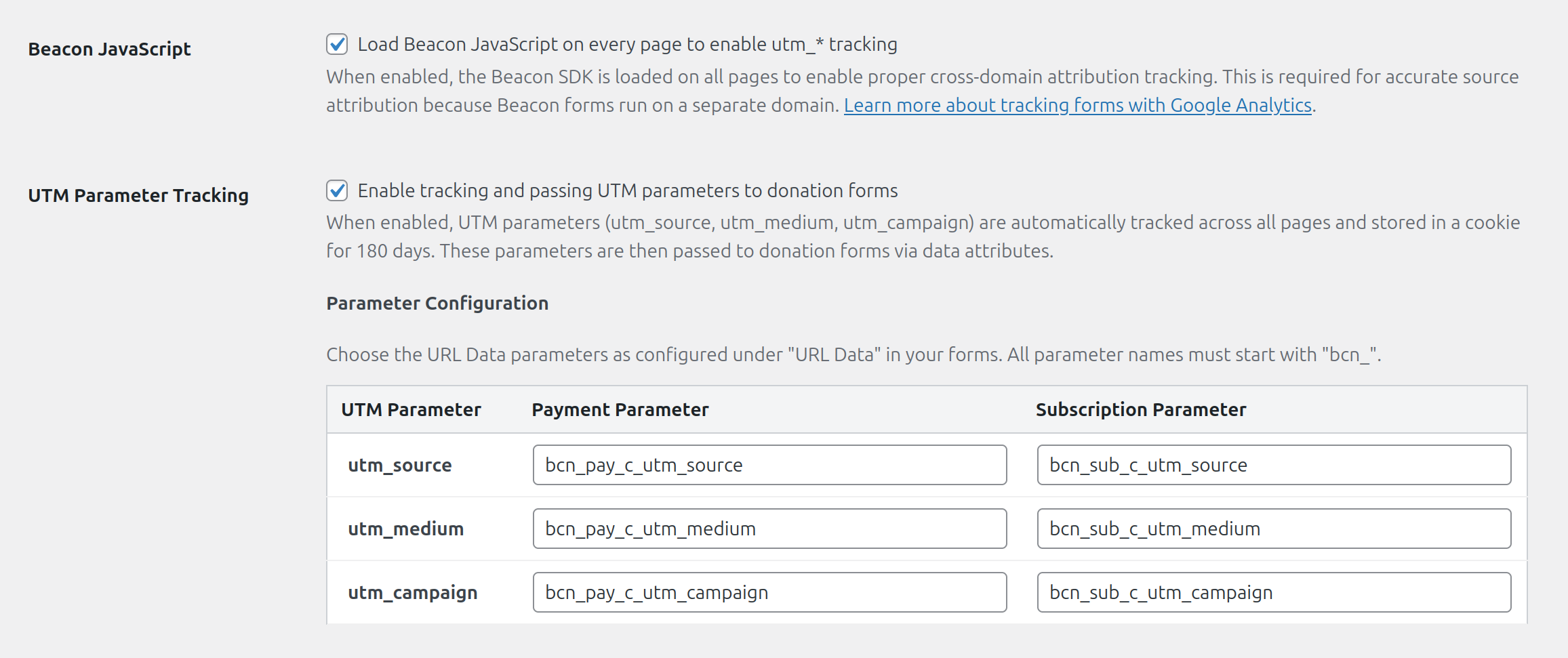
- Follow Beacon's tutorial to configure your GA4 property ID.
- Add the
utm_*custom fields to your Beacon's Subscription and Payment entity types.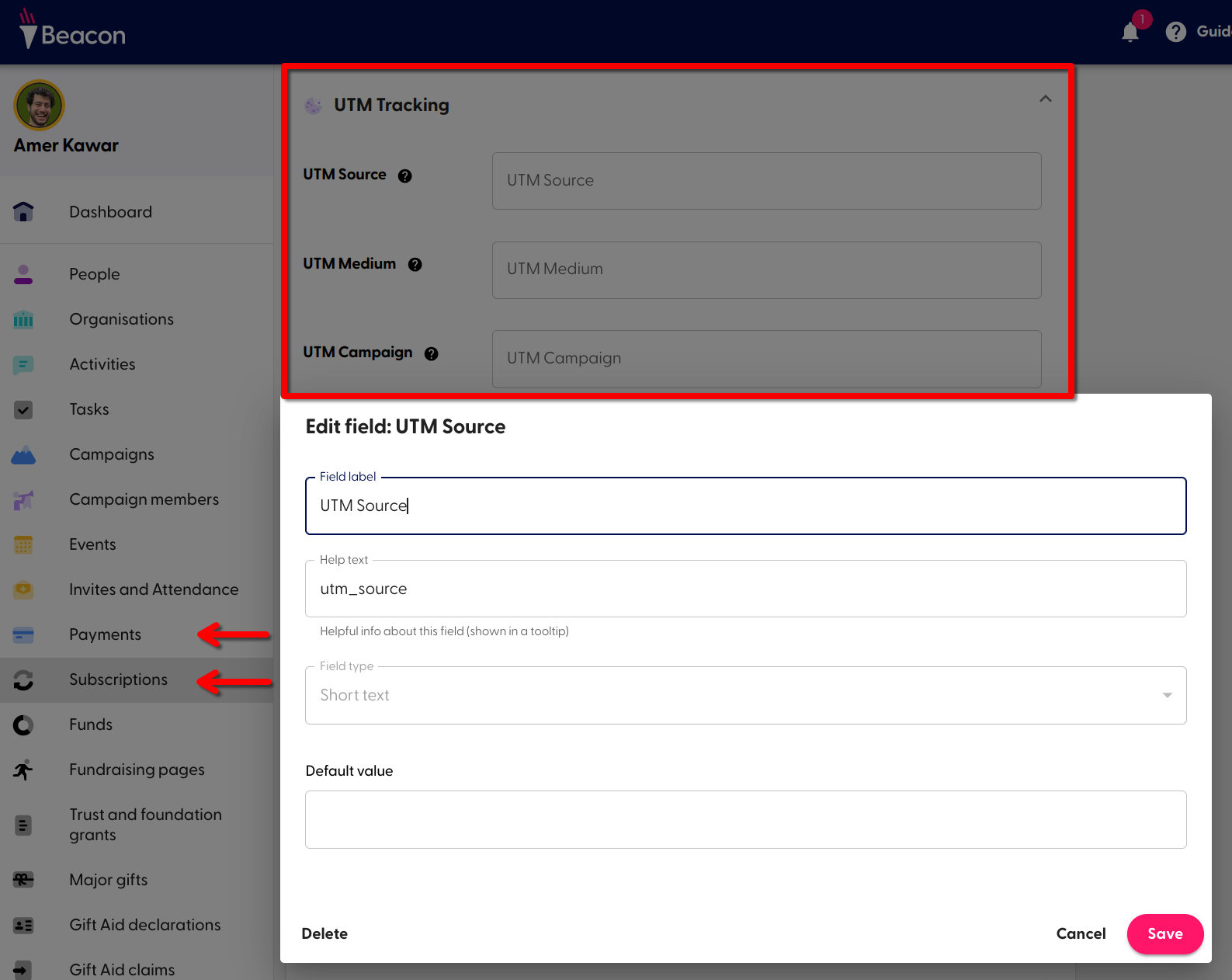
- This is important: Each Beacon form must have the
utm_*URL data fields configured.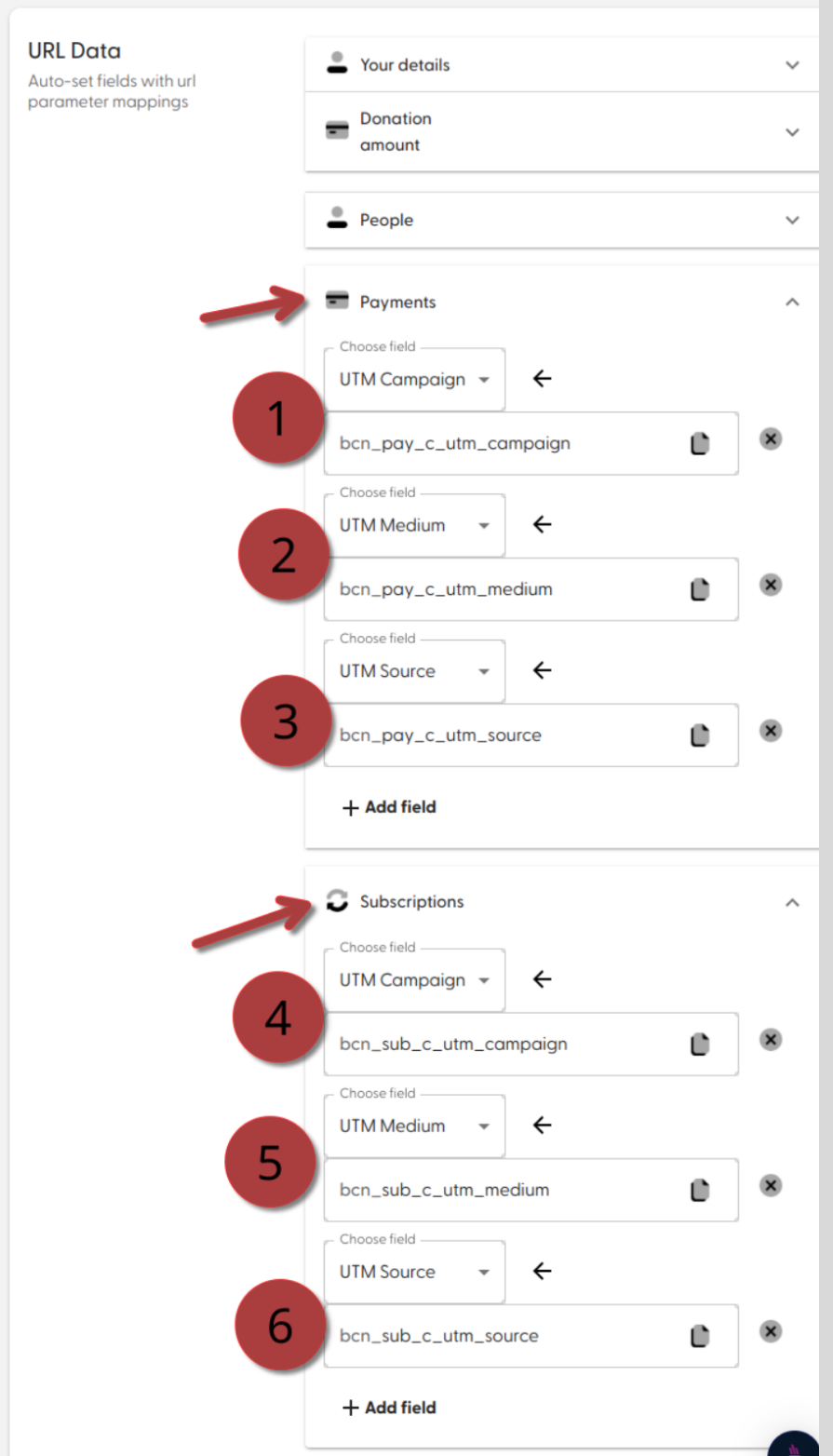
When configured properly, the parameters are passed to GA4, as well as to Beacon forms, which store them under each Payment/Subscription record.
Configuring UTM parameters with GiveWP and Beacon
To get GiveWP to sync with Beacon, you will need to set up the GiveWP – Beacon n8n integration automation.
To configure GiveWP with Google Analytics:
- Follow the GiveWP tutorial.
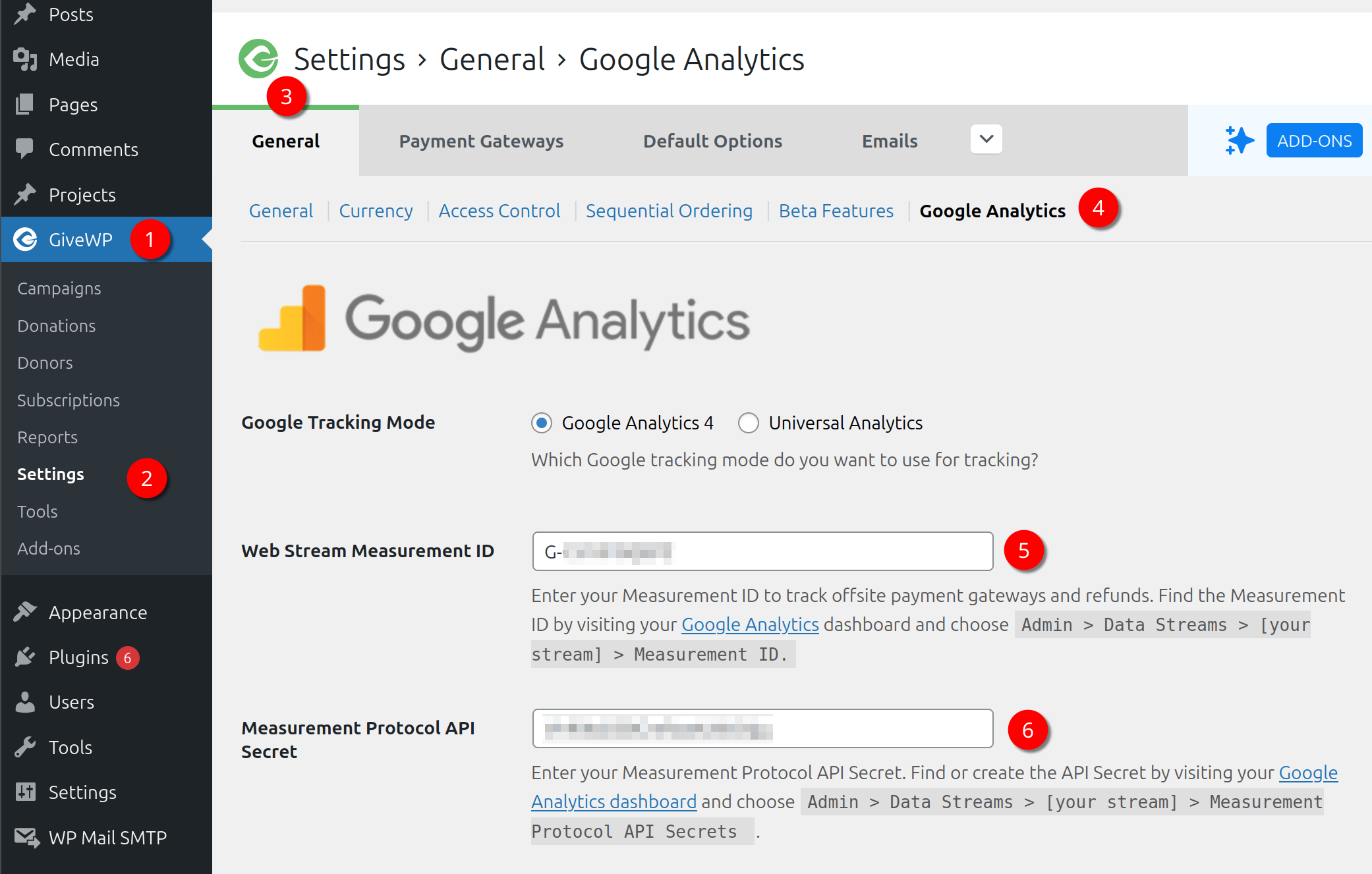
- Make sure your n8n Upsert Subscription and Upsert Payment nodes passes the UTM parameters. That's all covered in my GiveWP to Beacon n8n integration tutorial.
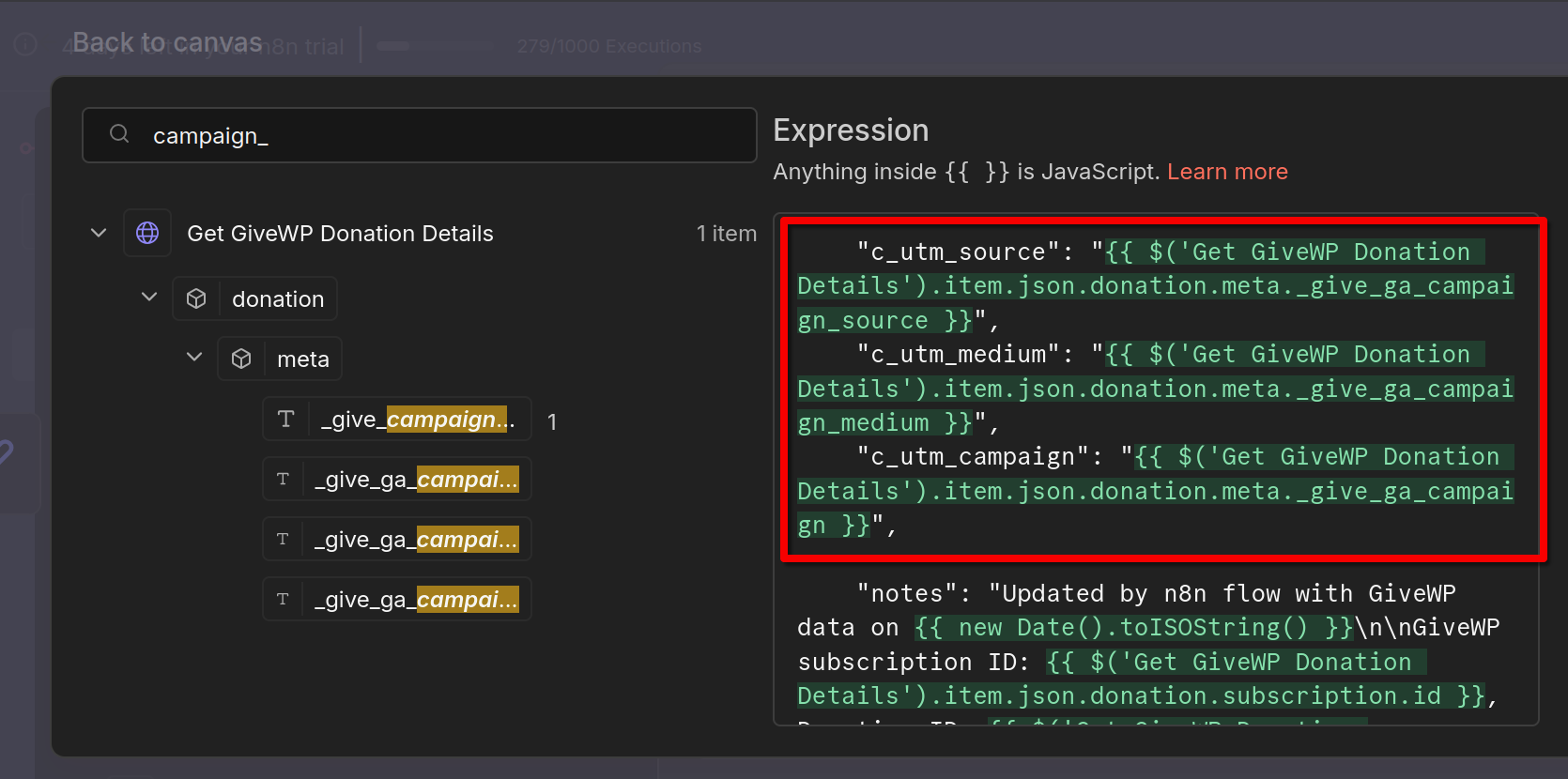
That's it!
Wrapping up
Tracking conversion sources is crucial for a non-profit. That's why you should get it right and integrate it with your CRM.
Doing it right will let you know which campaigns brought in more donors and/or donations. It allows you to run A/B tests between campaigns to find the winning formula for your charity. It allows you to segment your email campaigns accurately.
Good luck tracking your success and growing your charity! Please share your story with me if you find this useful.